
ESO Verbes
Learn French verb conjugation
iPhone · iPad · Mac
Coming soon to the App StoreAbout
Master French conjugation, one floor of the Eiffel tower at a time. ESO Verbes has you conjugate French verbs in every tense, with short exercises, complete tables of 4,339 verbs and a clear explanation of every mistake. The app speaks 12 languages; the verbs and the exercises stay French. No account, no advertising, and no internet connection needed, except to buy.
This guide names each button by its English label, with the French label in brackets, for example Practice (« Exercer »). If your app is in another language, the buttons are in the same place.
Getting started
The first launch
- Open ESO Verbes. A short ESO film plays.
- To skip it, tap Skip (« Passer »). You see the home screen.
Want only the logo for 3 seconds instead of the film? Switch on Short intro (« Intro courte ») in the settings, under Startup (« Démarrage »).
The home screen
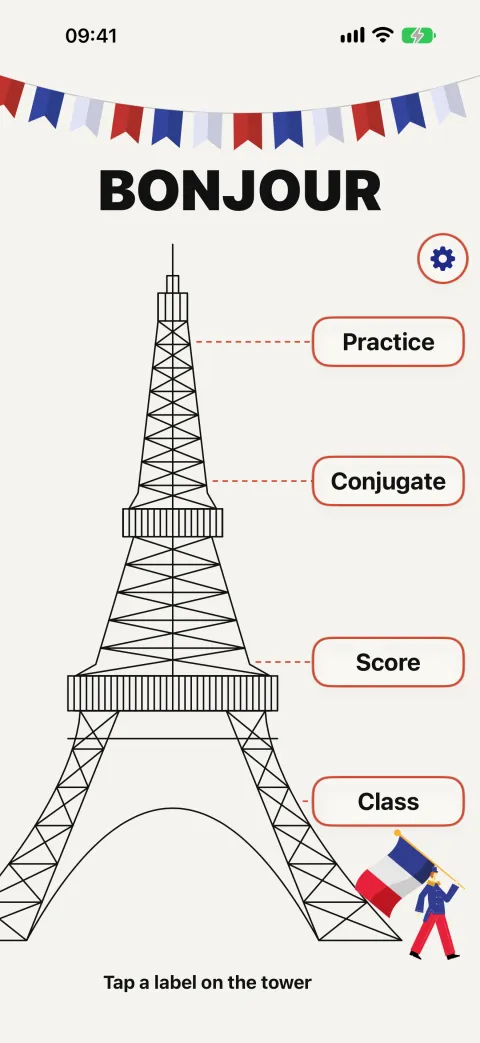
The home screen says Bonjour and shows the Eiffel tower with four labels. Tap a label to open that part of the app:
- Practice (« Exercer »): do an exercise. See Practise.
- Conjugate (« Conjuguer »): look up any verb. See Conjugate.
- Score: your best results. See Score.
- Class (« Classe »): teacher mode. See Class.
At the top right are two buttons: ? opens this guide, and the gear opens the Settings (« Réglages »).
Finding your way
- The bar at the bottom of every screen switches between Practice, Score, Conjugate, Class and Settings.
- Tap the part you are already in to go back to its first page.
- The small tower at the top left takes you back to the home screen.
Practise
Set up an exercise
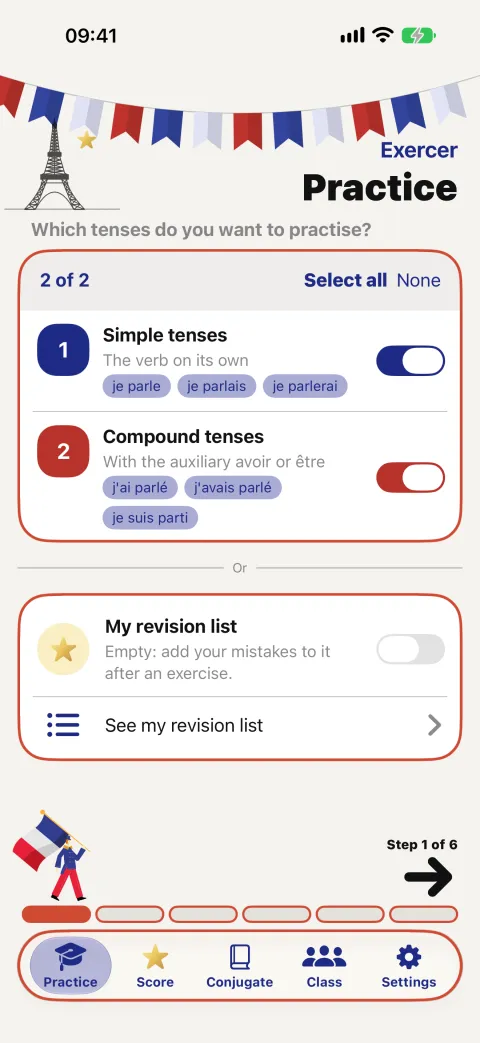
An exercise is set up in six short pages. Each page asks one thing. On every page, Select all (« Tout sélectionner ») ticks everything and None (« Aucun ») clears it. Tap Next (« Suivant ») or the arrow to go to the next page.
- On the home screen, tap Practice (« Exercer »).
- Choose Simple tenses (« Temps simples », e.g. je parle), Compound tenses (« Temps composés », e.g. j'ai parlé), or both. Tap Next.
- Tick the simple tenses you want. Each one shows an example. Tap Next.
- Tick the compound tenses you want. Tap Next.
- Choose the Forms (« Formes »): active, passive and/or pronominal. A verb that doesn't exist in a form is skipped. Tap Next.
- Choose the verbs: by family (1st, 2nd or 3rd group), by conjugation model, or one by one with the search field. Tap Next.
- On the last page, choose:
- Multiple choice (« Choix multiple ») or Type the answer (« Écrire la réponse »);
- the Time per question: Unlimited (« Illimité ») or 10 to 60 seconds; a coloured bar counts down;
- the Number of questions: 10 to 50;
- whether questions and answers are read aloud;
- with typed answers, whether an answer with only a missing or wrong accent counts as right.
- Tap Start (« Commencer »). The first question appears.
Verbs and tenses with a lock 🔒 are not in the free version: tapping them opens the purchase screen (see Purchases).
Answer the questions
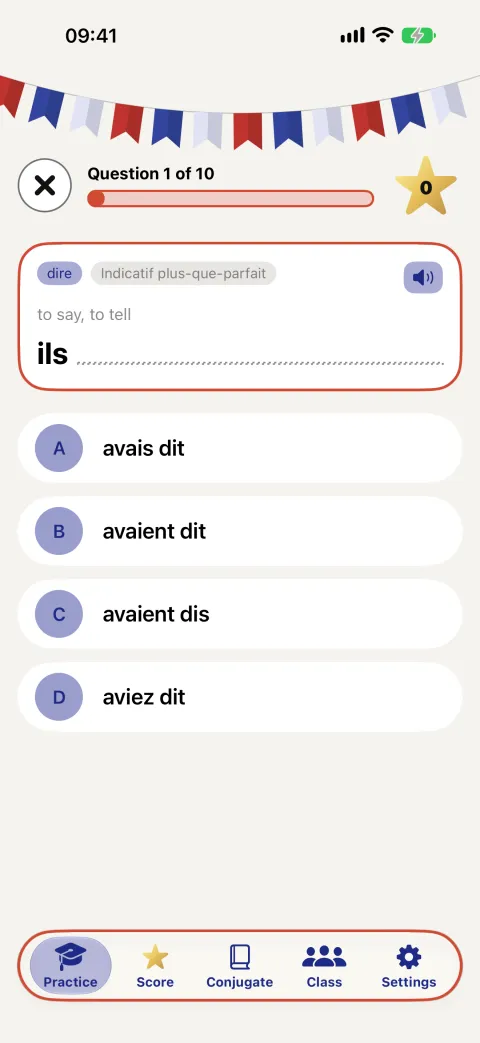
- Read the question: the verb, the tense and the person. Under it you see what the verb means in your language. Before a vowel the person is written « j' », for example « j'habite ».
- Tap the right answer, or type it and confirm.
- Right: the counter in the star at the top right goes up, and the next question comes.
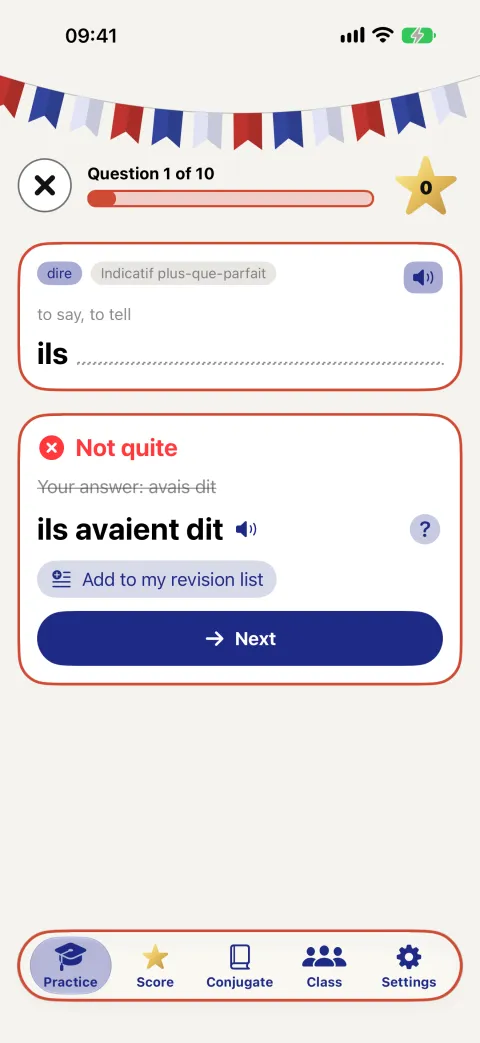
- Wrong: the app shows Not quite, your answer crossed out and the right answer.
- Tap ? to see why: the stem, the ending, a spelling change, the auxiliary or the agreement. The speaker button reads the explanation aloud.
- Tap Add to my revision list (« Ajouter à ma liste de révision ») to practise this form again later.
- Tap Next (« Suivant ») to go on.
- To stop early, tap the ✕ at the top left.
On devices with Apple Intelligence switched on, two more buttons appear: Why? (« Pourquoi ? ») explains the form in your language, and Examples (« Exemples ») shows example sentences. They don't appear on older devices or in the App Store of mainland China.
The results
At the end you see your score and your mistakes. Then:
- Redo the mistakes (« Refaire les erreurs ») starts an exercise with only those.
- Add my mistakes to my revision list (N) (« Ajouter mes erreurs à ma liste de révision (N) ») keeps them all for later. The button then reads Mistakes in my revision list.
- See my revision list (N) (« Voir ma liste de révision (N) ») opens the list.
- New exercise (« Nouvel exercice ») goes back to the setup.
Conjugate
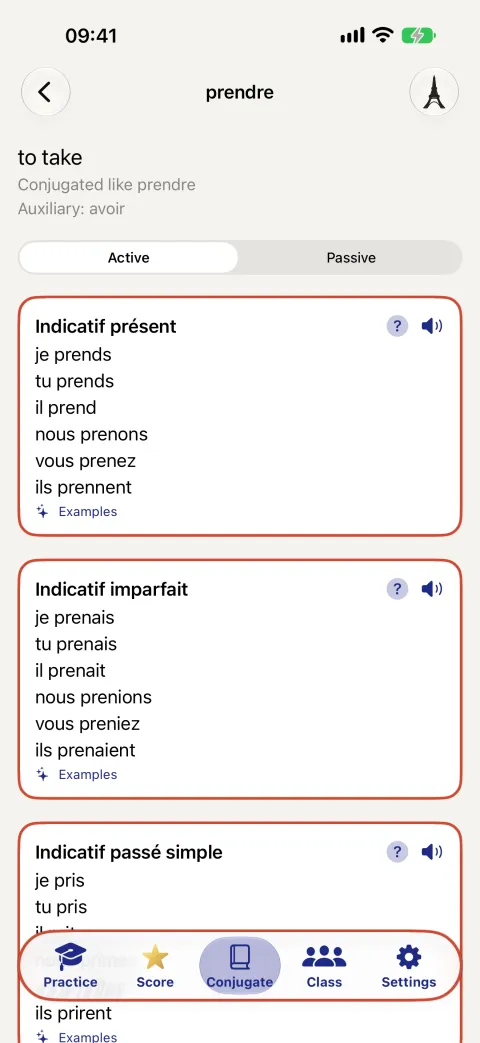
- On the home screen, tap Conjugate (« Conjuguer »).
- Type the first letters of a verb in the search field and tap it in the list. Any of the 4,339 verbs works.
- You see its meaning in your language, its conjugation model and its auxiliary, then every tense.
- Switch between Active, Passive and pronominal at the top.
- Tap ? next to a tense to read its rules for this verb; the speaker reads the tense aloud; Examples shows sentences (with Apple Intelligence).
- Tap the arrow at the top left to go back to the list.
Score
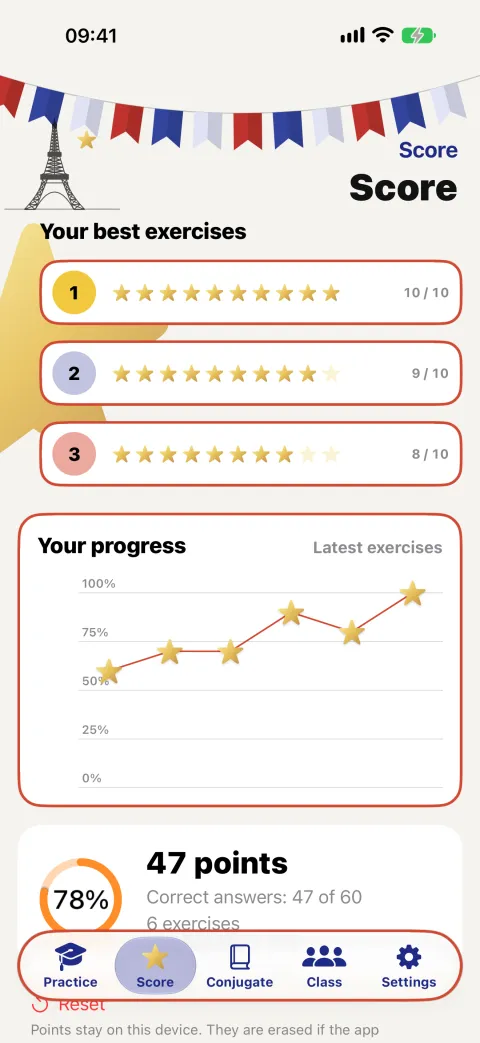
- On the home screen, tap Score.
- At the top: your three best exercises, in stars out of 10.
- In the middle: a chart of your latest exercises.
- At the bottom: your points (one per right answer) and your success rate.
To start again from zero, tap Reset (« Remettre à zéro ») and confirm. Your score is kept only on this device: deleting the app deletes it.
My revision list
The revision list keeps the forms you added after a mistake.
- Tap Practice (« Exercer »). On the first page, under My revision list (« Ma liste de révision »), tap See my revision list.
- Tap ? next to a form to see its explanation. Remove forms one by one, or tap Clear all (« Tout effacer »).
- To practise them: on the first page of Practice, switch on My revision list. The app goes straight to the last page; start the exercise.
- After this exercise, tap Remove the ones I got right from my list (N) (« Retirer les réussies de ma liste (N) ») to keep only the forms you still get wrong.
Class (teacher mode)
With teacher mode, a teacher shares an exercise with the class and collects the results. No account, no server and no internet connection: everything travels in a QR code or a link, and the results stay on the teacher's device. Pupils don't need to buy anything: every verb and tense of a shared exercise works in the free app.
The teacher shares an exercise
- Set up the exercise in Practice, as above.
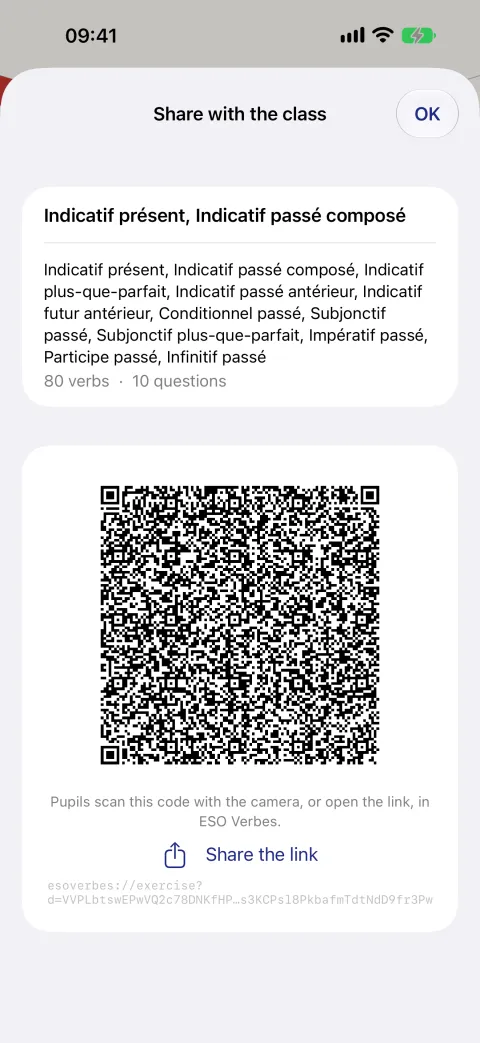
- On the last page, tap Share with the class (« Partager avec la classe »).
- Give the exercise a name.
- A QR code and a link appear. Show the QR code on the board, or send the link to the pupils.
The pupil does the exercise
- Install ESO Verbes (free).
- Scan the QR code with the camera, or tap the link. ESO Verbes opens the exercise.
- Type Your name (« Votre nom ») and do the exercise.
- At the end, a QR code and a link appear with the result: Show this code to the teacher, or send them the link.
The teacher collects the results
- Scan the pupil's QR code with the camera, or open the link.
- The result is added to the exercise in Class (« Classe »).
- In Class, tap an exercise to see every pupil's result and the forms most often wrong.
Settings
Tap the gear at the top right of the home screen, or Settings (« Réglages ») in the bar at the bottom. From top to bottom:
- Purchases and Restore purchases: see Purchases.
- Help (« Aide »): User guide and FAQ opens this page.
- Read aloud (« Lire à voix haute »): Read each question aloud, Read the correct answer, the reading speed, and Try the voice (« Essayer la voix »). Tip: for a more natural voice, download an enhanced French voice in your device's settings: Accessibility › Spoken Content › Voices › French.
- Readability (« Lisibilité »): Larger, more widely spaced text (« Texte plus grand et plus espacé »), which helps with dyslexia.
- Startup (« Démarrage »): Short intro (« Intro courte ») shows only the logo for 3 seconds instead of the film.
- Whether Apple Intelligence is available on this device.
Change the language
The app follows the language chosen for ESO Verbes in your device's settings. The verbs and the exercises always stay French.
- iPhone and iPad: open the Settings app › ESO Verbes › Language.
- Mac: System Settings › General › Language & Region › Applications, add ESO Verbes and choose its language.
Available: French, English, Dutch, German, Italian, Spanish, Portuguese (Portugal and Brazil), Arabic, Moroccan Arabic (Darija), Japanese and Simplified Chinese.
Purchases
What is free
The free version has the present tense (indicatif présent) of 50 common -er verbs, in the active form, in exercises and in the tables. Everything else shows a lock 🔒. Tapping a lock opens the purchase screen.
The three purchases
Each is a one-time purchase: no subscription, no advertising.
- Full version (« Version complète »): all verbs, all tenses and all forms.
- Teacher mode (« Mode enseignant »): the full version, plus sharing exercises with the class and the pupils' results.
- Upgrade to teacher mode (« Mise à niveau vers le mode enseignant »): teacher mode for the difference in price, for those who already have the full version.
All three are always listed, each with its price, in three places: at the top of the Settings, in Class, and on the screen that opens from a lock. A line above them says what you have.
Which one can I buy?
- Nothing bought yet: buy Full version or Teacher mode. The upgrade is greyed out: Only for owners of the full version: buy it first.
- You have the full version: only the upgrade can be bought. Teacher mode is greyed out: You already have the full version: take the upgrade below, it costs less.
- You have teacher mode (bought directly or with the upgrade): you have everything; each purchase is greyed out and says it is bought or included in your teacher mode.
A purchase greyed out with Price not available right now. means the App Store can't be reached at the moment. Check your internet connection and try again later.
How to buy
- Tap the gear at the top right of the home screen. The Settings open with the purchases at the top.
- On the purchase you want, tap Buy – price (« Acheter – prix »).
- Apple's window opens. Confirm with Face ID, Touch ID or your password.
- Done: the line at the top shows what you now have, and the locks disappear.
A child's account with Ask to Buy shows Purchase waiting for approval. until a parent approves the purchase on their device.
Another device, or after reinstalling
Your purchases work on every iPhone, iPad and Mac signed in with the same Apple Account. If the locks don't disappear by themselves:
- Open the Settings (the gear).
- Tap Restore purchases (« Restaurer les achats »).
Family Sharing is not available for these purchases. For a refund, ask Apple at reportaproblem.apple.com.
Questions and answers
- What is free, and what does the full version add?
- The free version has the present tense of 50 common -er verbs. The full version unlocks all 4,339 verbs, every tense and every form with one purchase; there is no subscription and no advertising.
- Why is a purchase greyed out?
- The app always shows all three purchases, so you can see what exists and what it costs. A greyed one can't be bought right now, and the line under it says why: you already have it, it is included in teacher mode, the upgrade needs the full version first, or the App Store can't be reached at the moment.
- What is teacher mode?
- Teacher mode lets you share an exercise with your class by QR code and collect your pupils' results the same way, without accounts or a server. It includes the full version. If you already own the full version, buy the upgrade to teacher mode instead: it costs only the difference.
- Do my pupils have to pay?
- No. Pupils install the free app and scan the teacher's QR code; every verb and tense of a shared exercise works for them.
- I bought the app on another device. How do I get my purchase back?
- Your purchases work on every iPhone, iPad and Mac with the same Apple Account. If the locks stay, open the settings (the gear on the home screen) and tap Restore purchases.
- Where is my score after reinstalling the app?
- Your score and revision list are kept only on the device, so deleting the app deletes them. Your purchases are not lost: tap Restore purchases in the settings.
- Why don't I see the Why? and Examples buttons?
- The explanations and example sentences written by Apple Intelligence appear only on devices that support Apple Intelligence, with it switched on. They are not offered in the App Store of mainland China. Everything else works on every device.
- Why does the voice sound robotic?
- The app uses your device's French voice. For a more natural one, download an enhanced French voice in your device's settings: Accessibility › Spoken Content › Voices › French.
- Can the app read the verbs aloud when my iPhone is in silent mode?
- Yes. Reading aloud plays even in silent mode; you can switch it off, or change its speed, in the settings.
- How do I change the language of the app?
- On iPhone and iPad: Settings › ESO Verbes › Language. On the Mac: System Settings › General › Language & Region › Applications. The verbs and exercises always stay French.
- Does ESO Verbes need an internet connection or an account?
- No account. Everything works offline; only buying and restoring purchases need a connection.
- What data does ESO Verbes collect?
- None. Your points and revision list stay on your device and are deleted with the app. Class sharing goes directly from device to device by QR code.
Support
- Privacy policy: www.eso.be/eso-verbes/privacy
- A question, a problem or an idea? Write to us and mention the app, your device and its iOS version.